Microsoft Edge
Quick Solution
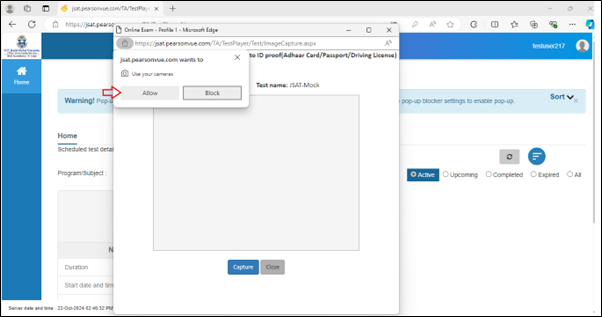
When you click 'Start test', if your browser's settings are blocking camera access, a notification will appear asking for permission to use your camera. You'll need to click 'Allow' to let the website take a picture.
Alternative way to allow camera access:
-
Click on the three-dots
 icon in the top right corner of the browser window.
 -
Select "Settings" from the dropdown menu.
-
Scroll down and click on "Cookies and site permissions"
-
Under "Site permissions" find "Camera" and click on it.
You will see https://jsat.pearsonvue.com/TA/Testplayer/Login/Login.aspx under “Recent Activity”.
-
Click the right arrow.
-
Under Site Permissions, for the Camera, choose Allow from the drop-down.
 Related Topics