Google Chrome
If you're using Google Chrome to access the Pearson Vue application, follow these steps to enable a popup from this site.
Quick solution
After clicking ‘Start Test’, a new tab will open. The system will ensure that your hardware and browser settings are suitable for taking the exam.
Most browsers block pop-ups by default. If your browser is set this way, you'll see a warning message on the right end of the address bar, that appears for a short while saying “Pop-up blocked” (The red marking in the image below).
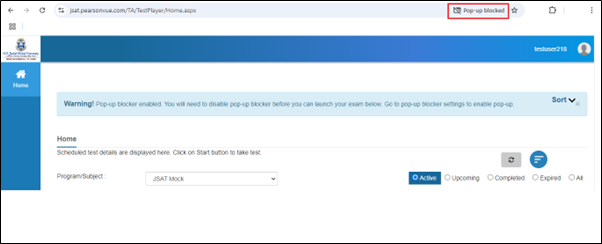
After the message disappears, an icon will replace it on the right side of the address bar.
Click the icon to open the menu. In the menu, select the option "Always allow pop-ups and redirects from https://jsat.pearsonvue.com". (The red marking in the image below)
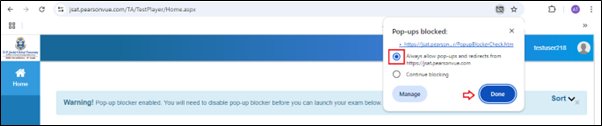
Alternative way to Allow Pop-ups:
-
Click the three-dot menu
 in the top-right corner of Chrome.
 -
Go to Settings.
-
Scroll down and click Privacy and Security.
-
Select Site Settings.
-
Scroll down and click Pop-ups and redirects.
-
Set to Allowed or add specific sites under Allowed to send pop-ups and redirects.
For detailed instructions from Google:
 Related Topics