Mozilla Firefox
If you're using Firefox to access the Pearson Vue application, follow these steps to enable a popup from this site.
Quick solutions
Method -1
After clicking ‘Start Test’, a new tab will open. The system will ensure that your hardware and browser settings are suitable for taking the exam.
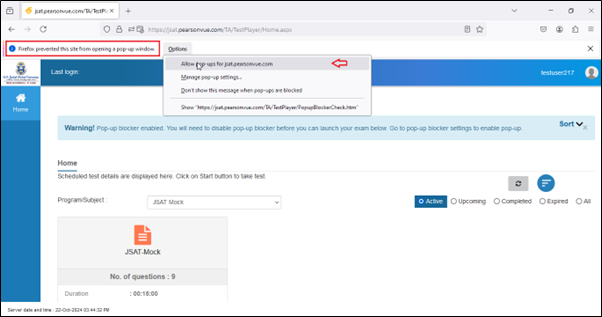
Most browsers block pop-ups by default. If your browser is set this way, you'll see a warning message on the left side of your browser, below the address bar that says 'Firefox prevented this site from opening a pop-up window. Click the button “Options” which is beside this warning message. In the dropdown listed, choose the option “Allow pop-ups for jsat.pearsonvue.com”.
Method-2
After clicking ‘Start Test’, a new tab will open. The system will ensure that your hardware and browser settings are suitable for taking the exam.
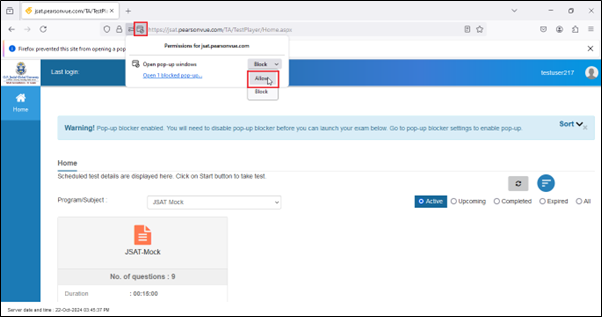
Most browsers block pop-ups by default. If your browser is set this way, you will see an icon which is a warning sign to say, that pop-ups for this site are in the blocked state. You can click on this icon and choose “Allow” from the drop-down list against “Open popup windows” (The red marking in the image below).
Alternative way to Allow Pop-ups:
-
Click the three-line menu (☰) in the top-right corner of Firefox and select Settings.
-
Go to the Privacy & Security section.
-
Scroll down to the Permissions section.
-
Uncheck Block pop-up windows to allow all pop-ups or click Exceptions to allow pop-ups from specific websites.
For more detailed steps from Mozilla:
 Related Topics