Add Secure Browser to Screen and Audio Recording
To add Secure Browser to Screen Recording and Microphone (Audio) Recording on your Mac, follow these steps. These permissions are necessary for Secure Browser to record your screen and audio during online exams.
Step-by-Step Instructions:
Open System Settings:
-
Click the Apple logo in the top-left corner of your screen.
-
Select System Settings (or System Preferences, depending on your macOS version).
Navigate to Privacy & Security:
-
In the System Settings window, scroll down the left sidebar and click on Privacy & Security.
-
If you're on an older macOS version, you'll find this section under Security & Privacy.
Grant Screen & System Recording Permissions:
-
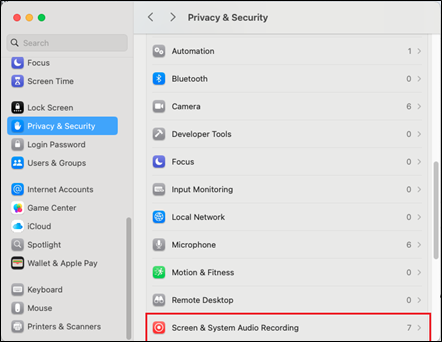
In the Privacy & Security section, scroll down and select Screen & System Audio Recording from the list on the left.
-
To add Secure Browser, click the
 Add button below the list.
 -
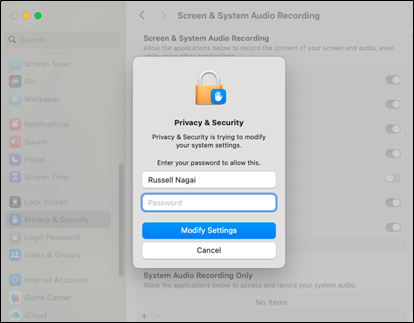
You will be prompted with a privacy and security pop-up box, where you'll need to enter your admin password.
-
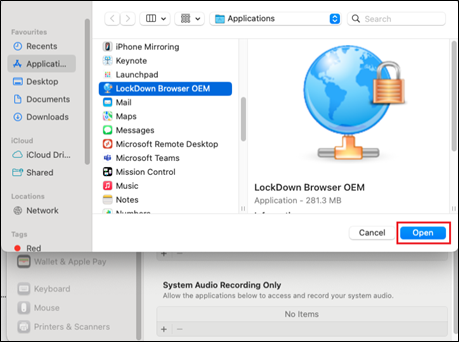
After entering the password, press the Enter key or click the Modify Settings button. This will open a file browser.
-
Navigate to your Applications folder.
-
Find and select the Secure Browser.
-
Click Open to grant access.
Close System Settings:
-
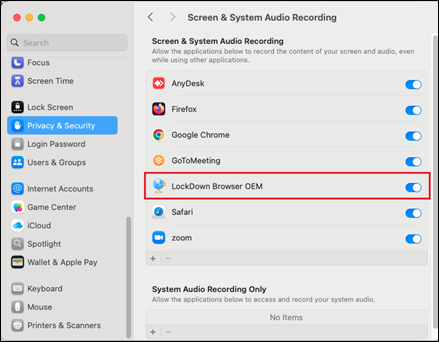
Make sure the toggle button next to the Secure Browser application is enabled
-
Once you have made all changes, you can close the System Settings window.
 Related Topics