Remove extensions
What is the significance of deleting extensions when using the Secure Browser for taking tests?
Removing extensions while taking a test with Secure Browser is required to ensure a secure testing environment. By disabling extensions, Secure Browser helps maintain the integrity of the exam by blocking any tools or features that could compromise the testing process.
Instructions for removing extensions for taking using Secure Browser
To ensure the Secure Browser functions properly and maintains a secure testing environment, you need to remove certain browser extensions that could potentially interfere with the exam process. Here's how you can do it:
Go to Settings in the Browser: Open your Chrome browser and navigate to the settings menu. This is where you can manage various browser options, including extensions.
Click on Extensions: In the settings menu, look for the Extensions section. This is where all the extensions installed in your browser are listed.
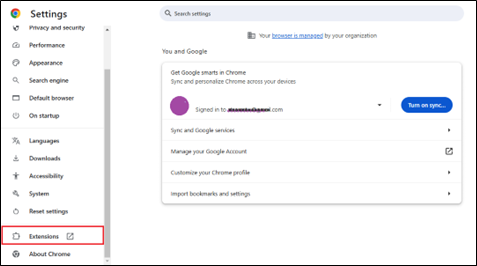
Remove Unnecessary Extensions: Identify extensions like Screencastify, McAfee WebAdvisor, or any others that are not needed for the test. These extensions could potentially interfere with the Secure Browser or provide unauthorised access to tools that are prohibited during the exam.
To remove an extension, click the Remove button next to it.
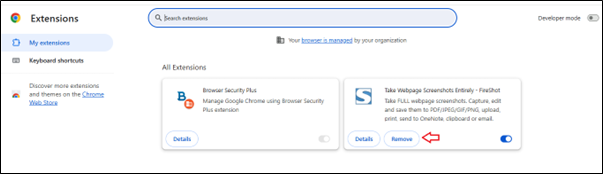
Important Note: Ensure you remove extensions from all Chrome profiles if you have multiple profiles set up. Each profile may have different extensions installed, so you should check and remove unnecessary ones from each profile to ensure complete security. By removing these extensions, you help maintain the integrity of the exam and comply with the testing requirements set by Secure Browser
 Related Topics