Apple Safari (macOS)
If you're using Safari on Mac to access the Pearson Vue application, follow these steps to enable a popup from this site.
Quick solution
After clicking ‘Start Test’, a new tab will open. The system will ensure that your hardware and browser settings are suitable for taking the exam.
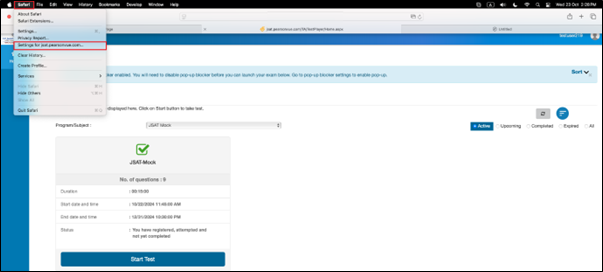
Most browsers block pop-ups by default. If your browser is set this way, you'll see an icon on the right side of your browser’s address bar. Hover your mouse over the top of the screen to view the menu bar. Click Safari in the menu bar. Select Settings for jsat.pearsonvue.com from the drop-down menu.
In the image below, the pop-up window status is shown as "Block and Notify” or “Block”

To enable pop-ups, click on "Block and Notify" and choose “Allow” from the drop-down list.

The pop-up window status will be updated upon page refresh.
Alternative way to Allow Pop-ups:
-
Open Safari and click Safari Preferences from the top menu.
-
Go to the Websites tab.
-
In the left-hand menu, select Pop-up Windows.
-
For each listed website, select Allow or add a new site and allow pop-ups.
To Allow Pop-ups on iOS:
-
Open Settings on your iPhone or iPad.
-
Scroll down and tap Safari.
-
toToggle Block Pop-ups Off to allow pop-ups.
For Safari’s official help:
Refer to Section “Allow pop-ups on one website”
https://support.apple.com/en-in/guide/safari/sfri40696/16.0/mac/11.0
 Related Topics